eSIM vs Physical SIM: Pros, Cons and How to Switch
eSIM and SIM cards use the same network but differ when you switch phones, travel or lose your phone. Here’s what each does better and how to switch.
eSIM vs physical SIM is no longer a niche question: almost every new mid-range and flagship phone supports eSIM, and some models have no SIM tray at all. Both tell your carrier which line belongs to your phone, but they behave very differently when you switch phones, travel or lose your phone. Here are the real pros and cons of each, which phones are eSIM-only, and how to switch to eSIM or move it to a new phone without losing service.
The short answer
- Same network, same speed. An eSIM and a SIM card connect to the same towers — signal, data speed and battery life don’t change.
- eSIM wins for travel and multiple lines: you can add a travel data plan in minutes and keep several lines on one phone.
- A physical SIM wins for quick swaps: move it to another phone in seconds — no app, no Wi-Fi, no call to the carrier.
- Switching to eSIM is usually free and takes a few minutes in your phone’s settings, the carrier’s app or with a QR code.
- Moving an eSIM to a new phone works best with the built-in transfer during setup. Keep the old phone untouched until the new one has service.
- Check before you buy: some phones sold in the US have no SIM tray, and many budget phones have no eSIM.
What is an eSIM, and how is it different from a SIM card?
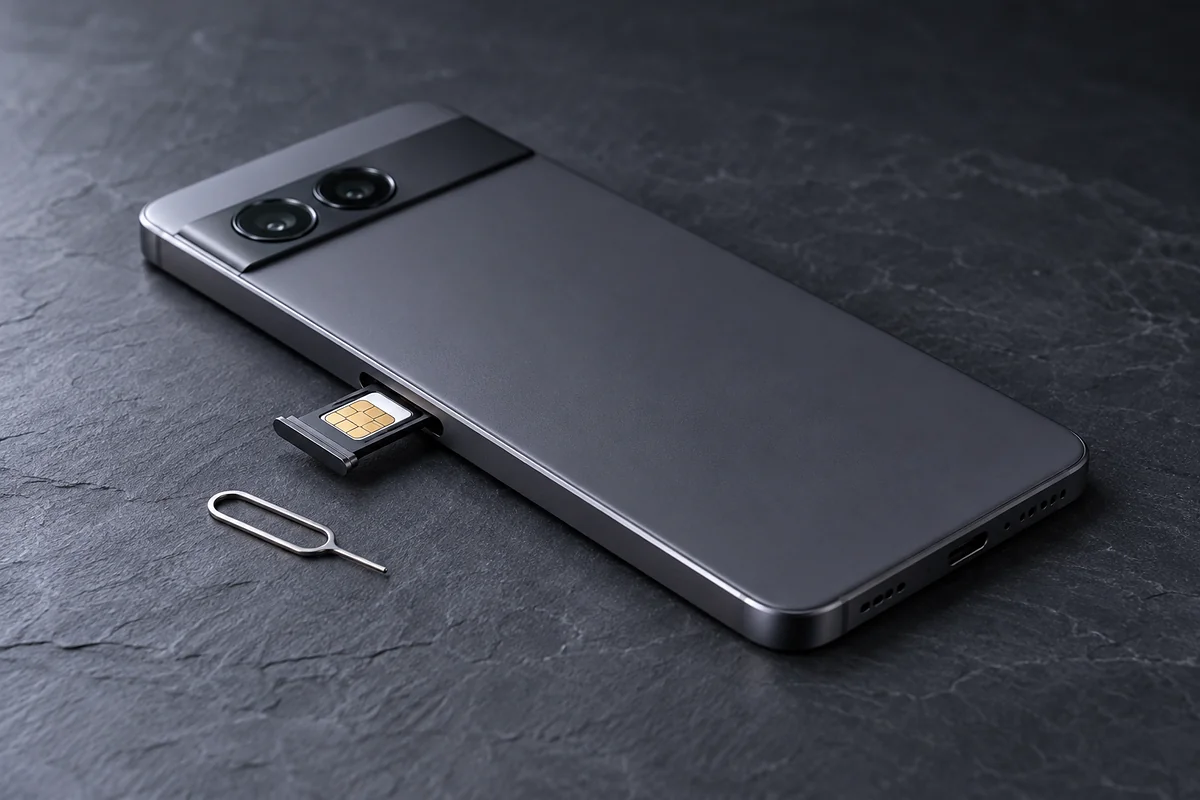
A SIM (subscriber identity module) holds the details your carrier uses to recognize your line: your subscriber ID, the keys that encrypt your connection and the network your phone should join. A physical SIM is a removable card — today almost always a nano-SIM, about 12.3 × 8.8 mm, roughly the size of a small fingernail — that sits in a tray on the side of the phone.
An eSIM (embedded SIM) does the same job with a tiny chip soldered to the phone’s board. Instead of handing you a card, the carrier sends a digital eSIM profile that your phone downloads over the internet. Delete the profile and you can download another one — the chip itself never leaves the phone.
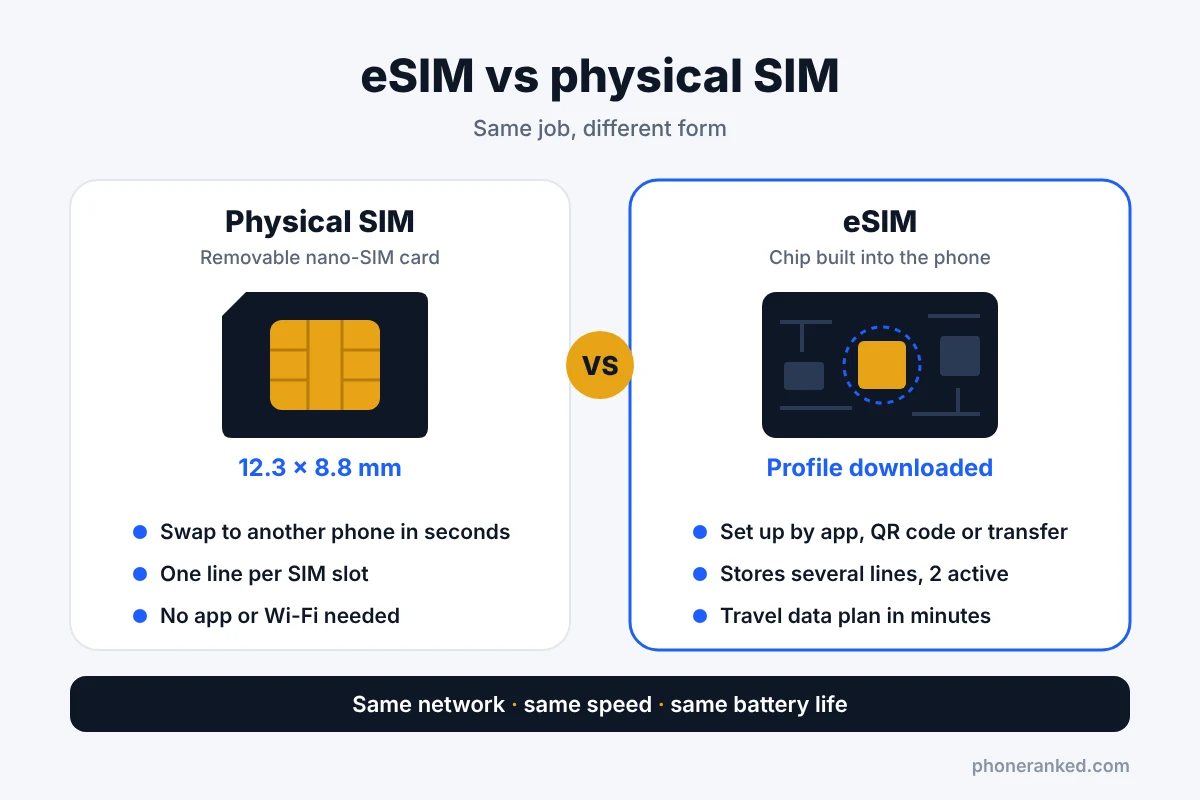
eSIM reached mainstream phones with Google’s Pixel 2 in 2017 and the iPhone XS and XR in 2018. What changed more recently is that some phones dropped the SIM tray completely.
eSIM vs physical SIM: side-by-side comparison
| eSIM | Physical SIM | |
|---|---|---|
| What it is | Chip built into the phone; profile downloaded | Removable card in a tray |
| Getting a new line | Carrier app, website or QR code — minutes, online | Store, mail or kiosk; insert and go |
| Moving to another phone | Digital transfer, or a new profile from the carrier | Pop it out, pop it in — seconds |
| Lines on one phone | Several stored (often 8 or more), usually 2 active at once | One per SIM slot |
| Travel data plans | Buy and install online before you leave | Buy a local card after you land |
| If the phone breaks | Carrier must reissue the line to another phone | Move the card to any unlocked phone |
| If the phone is stolen | The thief can’t pull the SIM out | The SIM can be removed in seconds |
| Signal, speed, battery | Same | Same |
| Phone support | Most mid-range and flagship phones; many budget phones lack it | Nearly all phones, except eSIM-only models |
eSIM pros: what’s genuinely better
- Fast activation, nothing to ship. A new line or a new carrier is ready in minutes, at any time of day — no waiting for a card in the mail.
- Several lines on one phone. Work and personal numbers, or your home line plus a travel data plan, live on the same phone without swapping cards. Apple says iPhones can store eight or more eSIMs, and Samsung says Galaxy phones can download up to 20 profiles (fewer if the profiles are large). Usually only two can be active at the same time.
- Easier, cheaper travel. Travel data plans are bought online and installed before the trip — no airport kiosk.
- Harder to strip from a stolen phone. A thief can’t pop out an eSIM to put your number in another phone or quickly cut the phone off the network.
- More room inside the phone. No tray means one less opening and more space for other parts. Apple, for example, rates the eSIM-only iPhone 17 Pro for 30 hours of video playback versus 28 hours for the version with a SIM tray, because the freed space went to a bigger battery.
- Nothing to lose or damage. SIM cards get lost, bent and scratched; an eSIM can’t.
eSIM cons: where a physical SIM still wins
The downsides of eSIM all come down to one thing: your line lives in software, so moving it depends on your phone, your carrier and an internet connection.
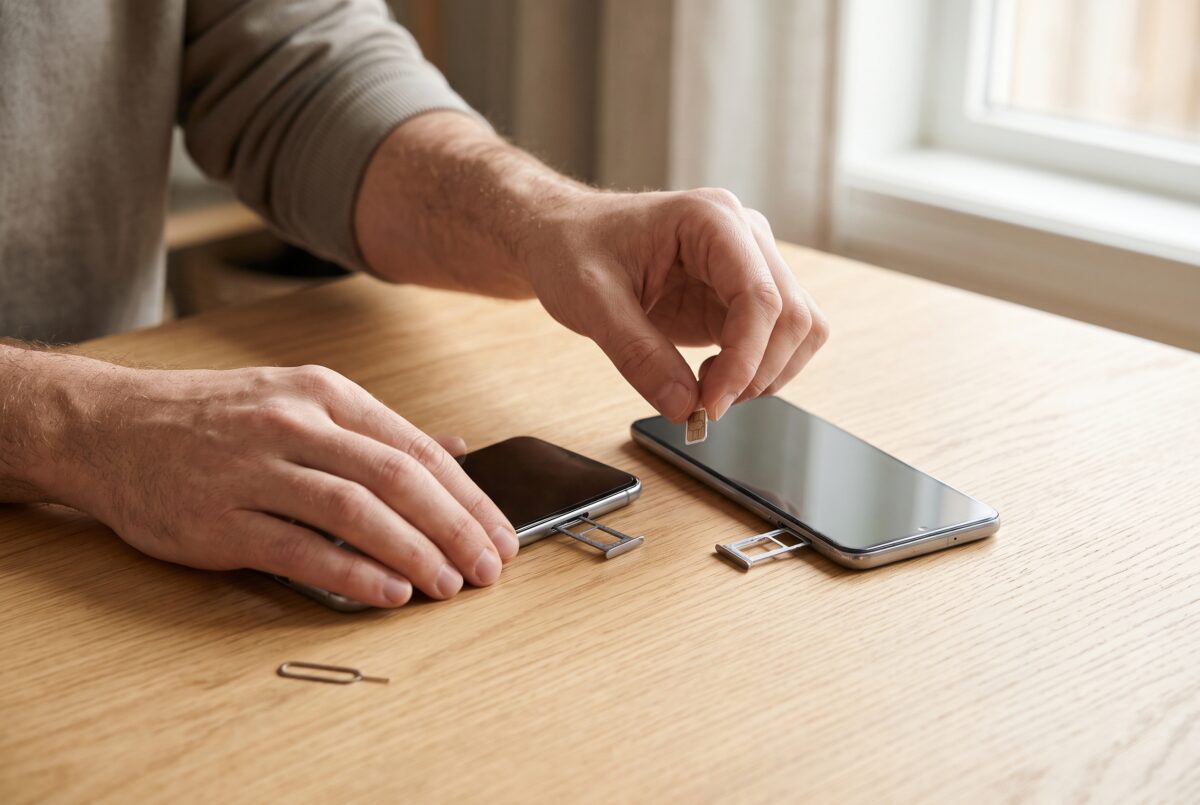
- A dead phone traps your line. A SIM card moves to a spare phone in ten seconds. With an eSIM, the carrier must issue a new profile, usually after you verify your identity — harder if your only phone just broke abroad.
- Switching phones depends on the carrier. Built-in eSIM transfers only work if your carrier supports them; otherwise you need a QR code from support or a store visit.
- Setup needs internet. The phone must be online to download a profile.
- Not every carrier supports eSIM. The big carriers in the US and Europe do, but some small prepaid carriers and carriers in some countries still offer only SIM cards.
- It’s easy to delete by accident. When you reset a phone, the menu asks whether to keep or erase your eSIMs. Pick the wrong option and the line is gone until the carrier issues a new one.
- Sharing with older phones is harder. A SIM card simply moves to a hand-me-down or backup phone that has no eSIM.
Is eSIM more secure than a SIM card?
In one way, yes. A thief can’t remove an eSIM to use your number in another phone, and a stolen phone with an eSIM may stay connected longer, which helps if you’re trying to locate it.
But the biggest SIM-related threat — SIM swap fraud — doesn’t care which type you have. Criminals trick a carrier into moving your number to their device, then receive your texted login codes. That happens at the carrier, so it works against eSIM and physical SIM alike. To protect your number:
- Turn on the number lock or SIM protection option in your carrier account — major US carriers offer one, and it blocks SIM changes or number transfers until you turn it off.
- Set an account PIN with your carrier, different from your phone’s unlock code.
- For important accounts (email, bank), use an authenticator app or passkeys instead of codes sent by text message.
- With a physical SIM, turn on the SIM PIN in your phone’s settings so the card can’t be used in another phone without it.
Which phones are eSIM-only?
Most phones still have a SIM tray and support eSIM too, so you can choose. The exceptions are mostly recent iPhones and Pixels sold in the US:
- iPhones sold in the US have had no SIM tray since the iPhone 14 in 2022. The iPhone 17 series is eSIM-only in more countries, including Canada, Japan and Mexico, while versions sold in Europe keep the tray.
- iPhone Air is eSIM-only everywhere it’s sold.
- Google Pixel 10, 10 Pro and 10 Pro XL dropped the SIM tray in the US in 2025. The same phones sold in other countries, and the Pixel 10 Pro Fold everywhere, still have one.
The opposite exists too: many budget phones support only SIM cards, and phones made for mainland China usually rely on two physical SIM slots. Because the same model can differ by region, check the SIM line in the specs of the exact version you buy — especially if you order a phone from another country. To see which phones support eSIM, use the eSIM filter in our Phone Finder.
eSIM for travel: how it works
Travel is where eSIM shines. Instead of hunting for a SIM kiosk at the airport, you buy a data plan online — from a travel eSIM provider or a local carrier — install it at home and switch it on when you land. It is often much cheaper than a roaming pass, and your home number keeps working.
- Check that your phone is unlocked. A phone locked to one carrier may refuse an eSIM from another. Our guide to unlocked vs carrier phones shows how to check and how to unlock it.
- Buy a plan for the right country or region and install it at home over Wi-Fi. Many plans only start counting days when they first connect at your destination — check the terms.
- Label your lines, for example “Home” and “Travel”, so you always know which one is which.
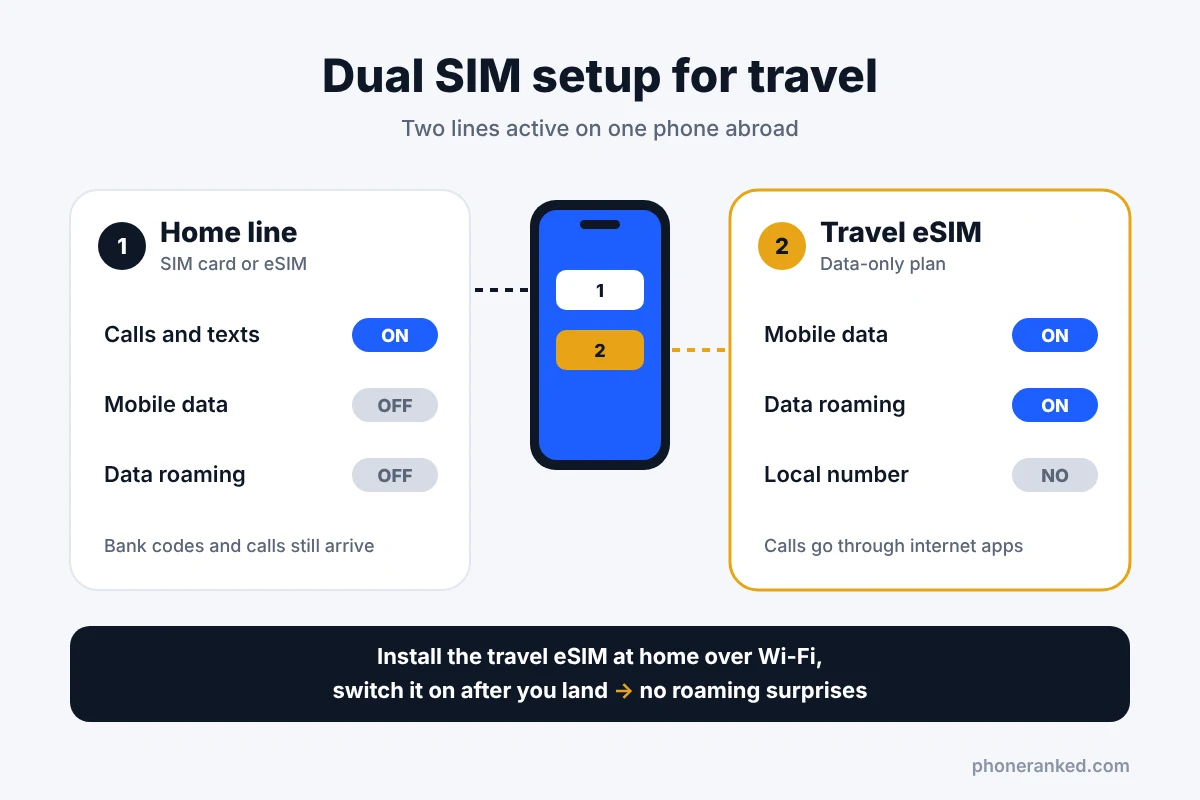
- After landing, set the travel line for mobile data and turn on data roaming for that line only. Keep data roaming off on your home line to avoid surprise charges.
- Keep your home line on for calls and texts if you need them — for example, bank codes. Check your carrier’s roaming prices for incoming calls first.
- Delete the travel eSIM when you’re done, or keep it if you can top it up.
Most travel eSIMs are data-only: you get internet but no local phone number. Calls go through apps like WhatsApp or FaceTime, while your home number still receives regular calls and texts.
Dual SIM with eSIM: how many lines can you use?
“Dual SIM” means one phone with two active lines. On modern phones that’s usually a SIM card plus an eSIM, or two eSIMs. There is an important difference between lines you store and lines that are active: a phone may hold eight or more eSIM profiles, but most phones run only two at the same time. You switch the others on and off in settings.
On most phones, both active lines receive calls and texts, and you choose which one handles mobile data. While you’re on a call on one line, the other usually can’t take a call. Typical uses: work and personal numbers, your main number plus a cheaper data-only plan, or a home line plus a travel eSIM.
If you want both options in one phone, the Phone Finder can show phones with both eSIM and dual SIM.
How to switch from a physical SIM to eSIM
Switching is usually free and takes 5–15 minutes. Before you start, connect to Wi-Fi and have your carrier account login and PIN ready — your number may be offline for a few minutes.
- Try your phone’s settings first. On an iPhone, go to Settings › Cellular › Convert to eSIM. On Android phones, open the SIM settings (on Pixel: Settings › Network & internet › SIMs), tap your line and look for a “Convert to eSIM” option. No such option means your carrier or phone doesn’t support it.
- Or use your carrier’s app or website. Look for “Switch to eSIM” or “Change SIM”.
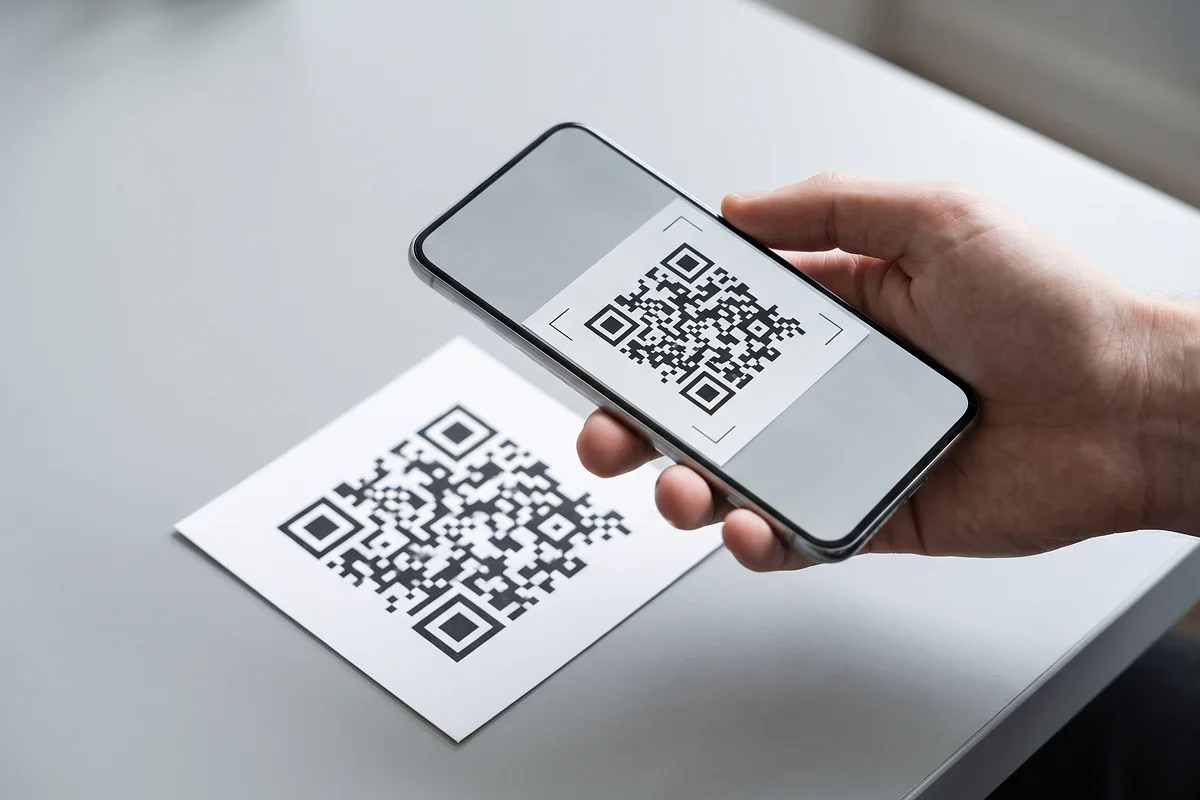
- Or get a QR code. Get one from carrier support or a store, then choose Add eSIM in your phone’s cellular or SIM settings and scan it.
- Test the new line. Make a call, send a text and turn off Wi-Fi to check mobile data.
- Remove the old card once everything works. It stops working when the eSIM activates; keep it for a couple of weeks, then cut it up before throwing it away.
How to move an eSIM to a new phone
The golden rule: don’t delete the eSIM or reset your old phone until the new phone has working service. If a transfer fails, the old eSIM normally keeps working, so you can simply try again.
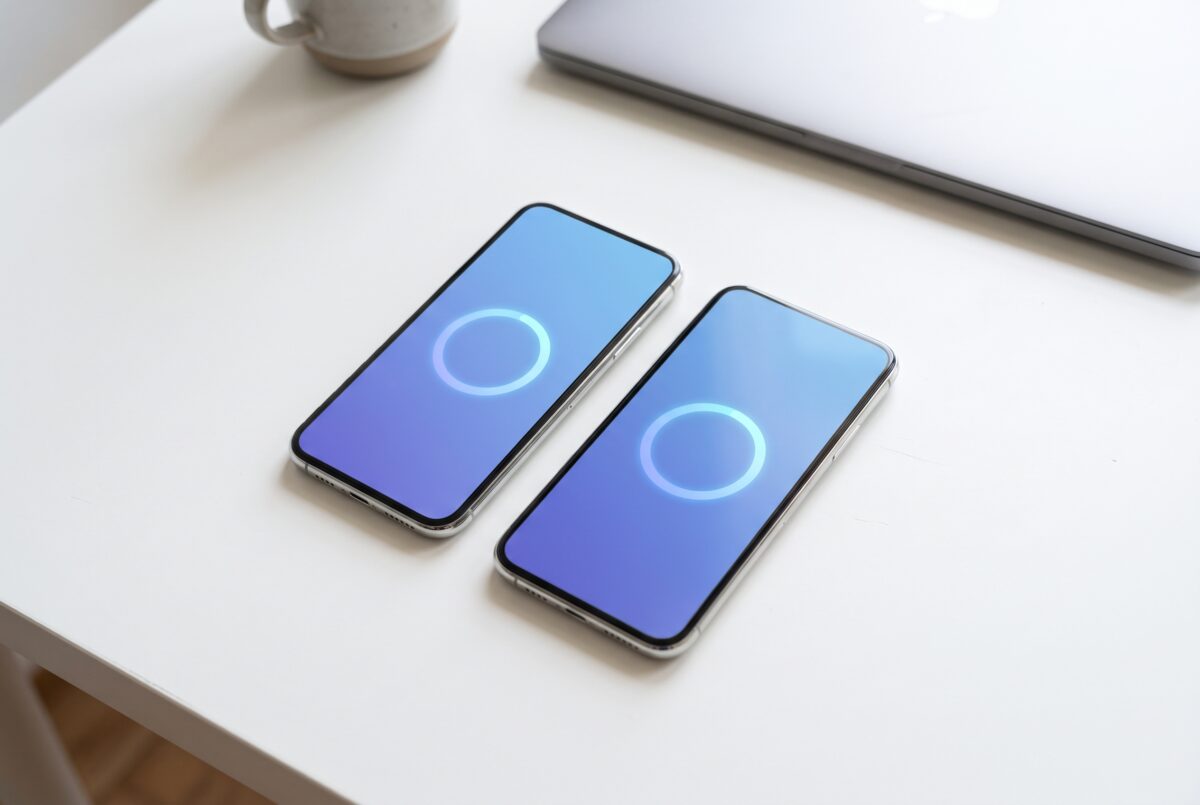
- iPhone to iPhone: during setup, the new iPhone offers to transfer your lines from the old one (eSIM Quick Transfer). After setup, go to Settings › Cellular › Add eSIM › Transfer From Nearby iPhone.
- Android to Android: the setup of a new phone usually offers to transfer the SIM from your old phone if your carrier supports it. On Pixel phones you can also do it later in Settings › Network & internet › SIMs › Add SIM › Transfer SIM from another device. Samsung and other brands have similar options in their SIM settings.
- Android to iPhone: works with an iPhone 11 or newer running iOS 26 or later and an Android phone on Android 16 or later, on supported carriers (in the US, all three major ones). Choose Transfer from Android during iPhone setup, or in Settings › Cellular › Add eSIM, then scan the code with the Android phone.
- iPhone to Android: the newest direction. It needs iOS 26.3 or later and a compatible Android 17 phone, and fewer carriers support it so far. Start on the iPhone in Settings › Cellular › Transfer to Android.
Keep both phones close together, with Wi-Fi and Bluetooth on. If the transfer isn’t offered or keeps failing, ask your carrier for a new eSIM — the old profile stops working once the new one activates.
What if your eSIM phone is lost or broken?
Your number belongs to your carrier account, so the carrier can issue it again.
- Contact your carrier from another phone, the website chat or a store. If the phone was stolen, ask them to suspend the line right away.
- Ask for a new eSIM on your replacement phone — or a physical SIM, if the replacement has a tray. Expect to verify your identity with a photo ID or your account PIN.
- Check your important accounts once the number works again.
Prepare before anything goes wrong: keep your carrier login and account PIN somewhere other than the phone, and save backup codes for your key accounts.
Quick answers
How do I know if my phone supports eSIM?
Look for an “Add eSIM” option in your cellular or SIM settings, or dial *#06# — phones with eSIM show an EID number. You can also check the SIM line in the phone’s specs.
Does eSIM affect signal, speed or battery life?
No. Both connect to the same network in the same way; signal, speed and battery life depend on the phone’s modem and antennas.
Can I use a SIM card and an eSIM at the same time?
Yes, on dual SIM phones. Most phones that have both a tray and eSIM let you run one line on the card and one on the eSIM.
Can I reuse an eSIM QR code?
Usually not. Most eSIM QR codes work only once, so after you delete an eSIM you need a new code or a new profile from your carrier.
Does deleting an eSIM cancel my plan?
No. Your plan and number stay on your carrier account. You just can’t use them on that phone until the carrier sends you a new eSIM.
Do carriers charge for switching to eSIM?
Switching is usually free. Some carriers charge a small fee to replace or reissue a SIM of either type, so check your carrier’s terms before you switch.